Model Preparation
This modding documentation is intended to be a follow-along development of team 9496’s 2025 robot. Additional notes are also provided to serve as more general information.
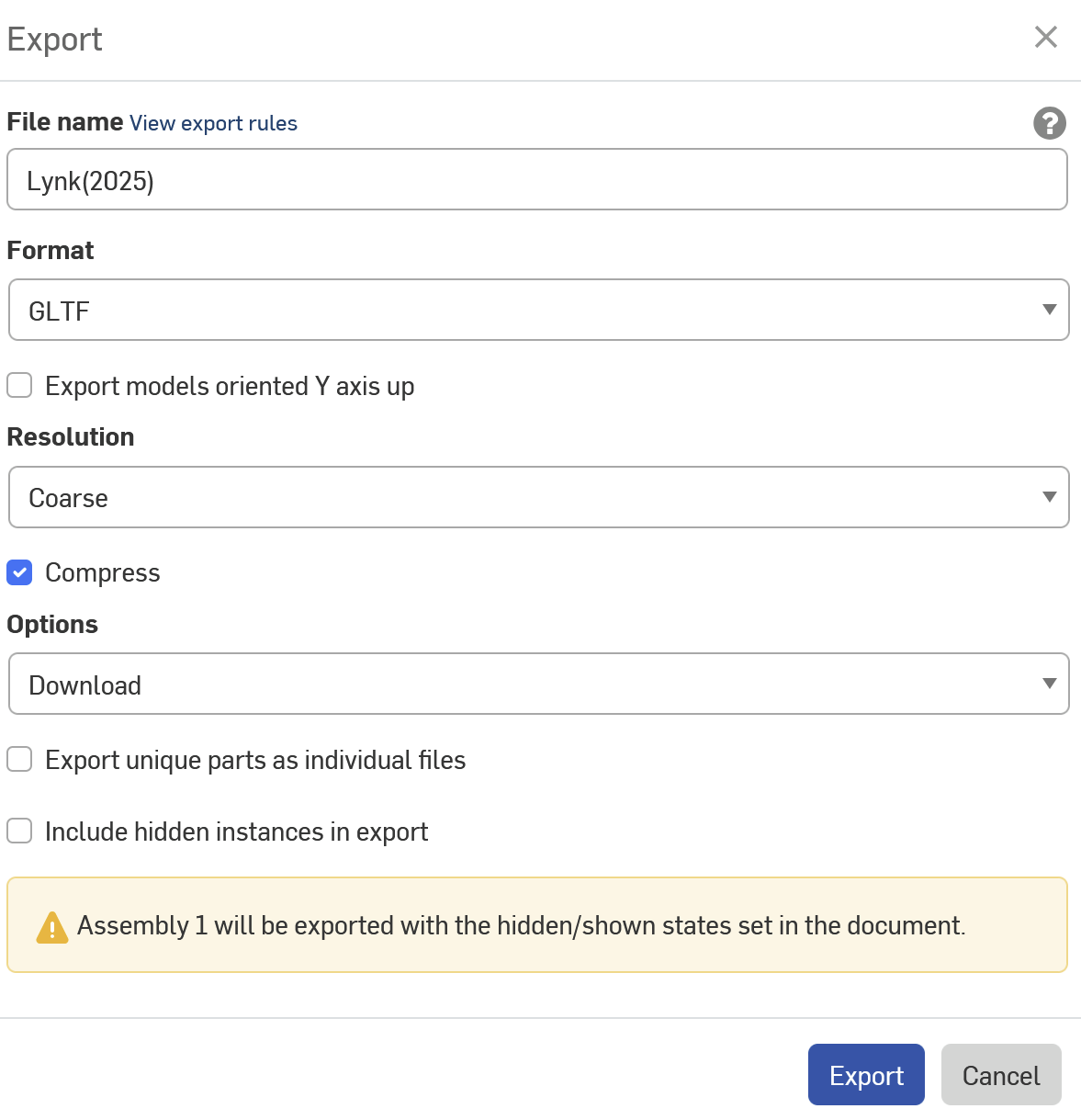
Export the assembly to GLTF, the normal naming scheme for models is team name or number(year) coarse is recommended if you intend to not do optimizations.
If you have the ability to copy and/or it is your teams CAD, it is highly recommended you swap to simplified swerve modules as they are a HUGE performance drain
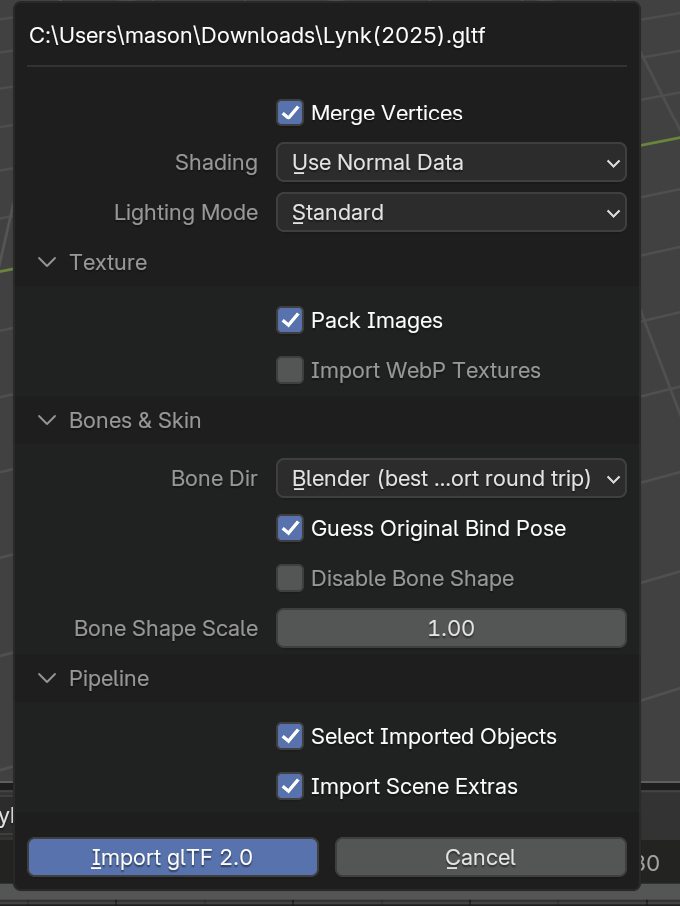
Now we will open the model in blender by simply dragging it on to the blender window. Remember to delete the light, camera, and cube that are in the scene by default. I also highly recommend checking Merge Vertices, Onshape tends to generate duplicate vertices and this is a free optimization.
This takes a while and will frequently report NOT RESPONDING, on windows, just give it time, unless the window closes itself something is happening. Robot models are big.
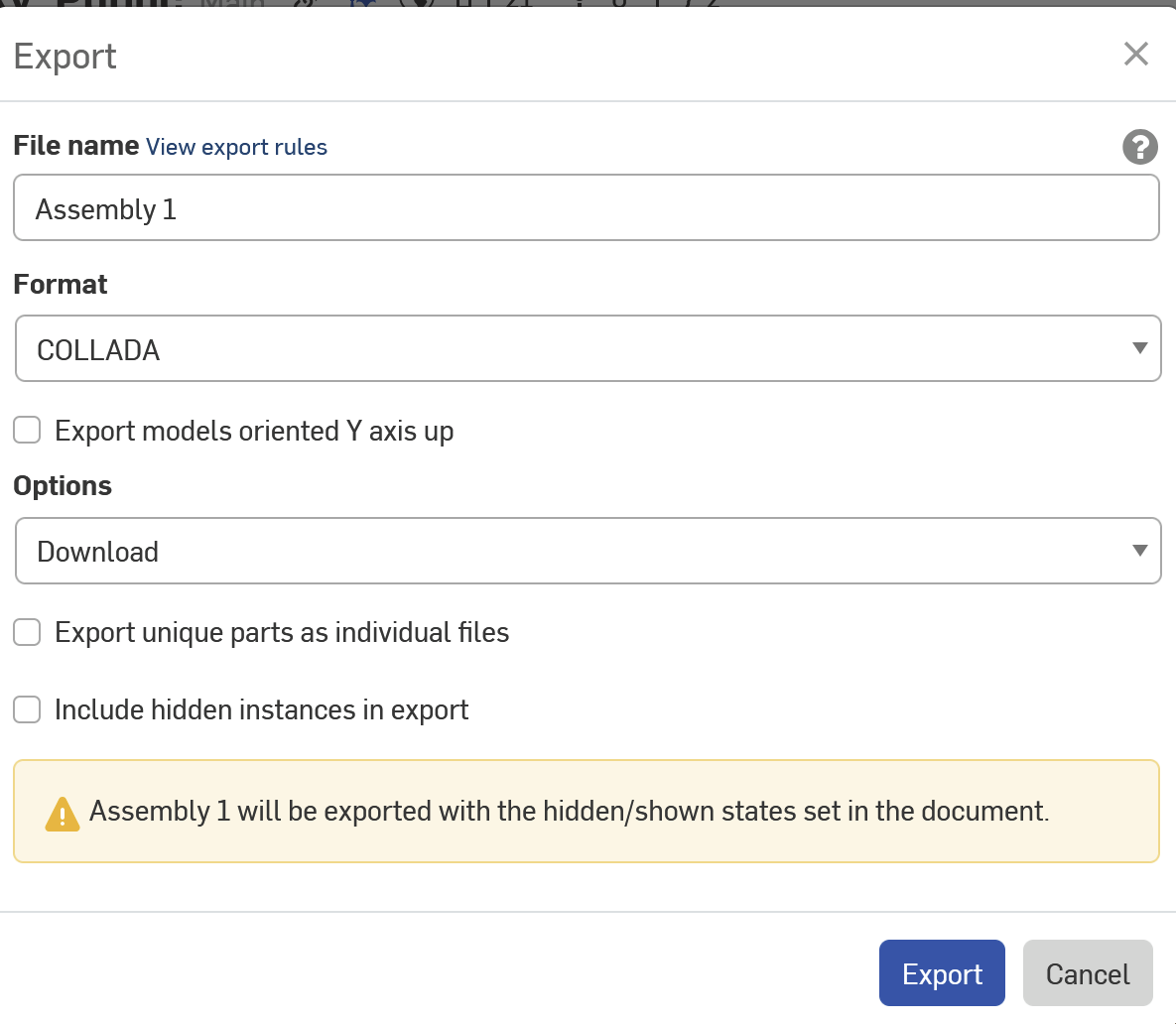
If your computer consistently crashes or fails to import to blender you can alternatively export to Collada, HOWEVER, it will be less performant and will make your editor experience worse and the end users experience worse.
When it finally imports it may not be upright which is okay, We will fix it in unity as it's simply easier.
If you are familiar with blender now is your chance to optimize the model. The more time you spend now, the more performance the end user will have.
The lazy approach is to merge vertices, limited dissolve, decimate and then weighted normal.
This will allow for a very minor decimation compared to doing it properly (final decimate of ~0.9)
Once you are happy click File -> Export -> FBX, then export to 9496(2025).fbx
You can now close Blender, and delete the Lynk(2025).gltf file.
You can now open the MoSim project in Unity