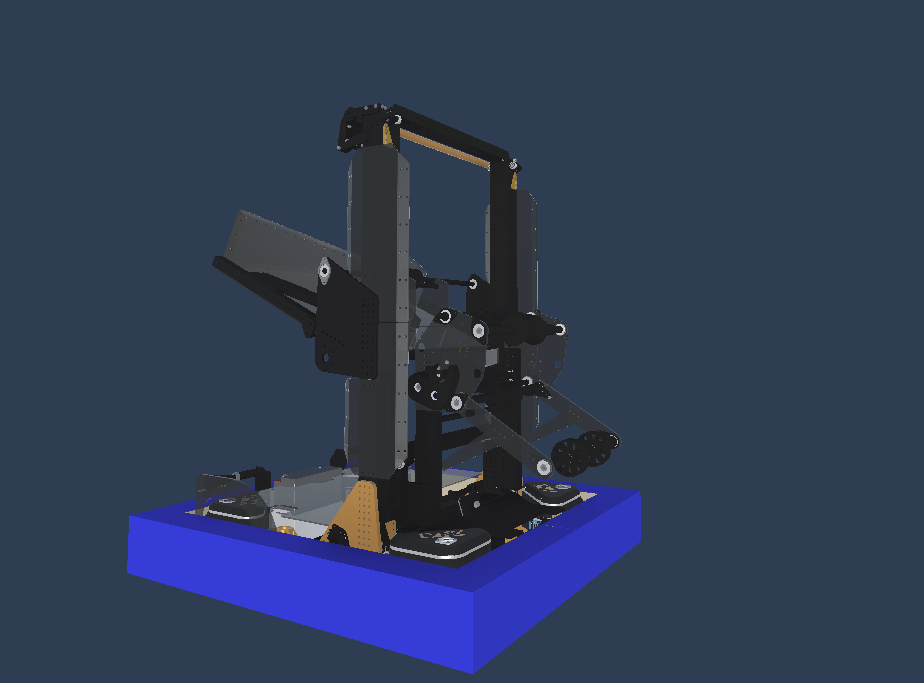
Import and Hierarchy
Importing
Create a new folder under Prefabs/Reefscape/Robots/Mods for your mod and name it what you wish to name your pack
This is the overall PACK, not the robot itself
Create a new ReefscapeModpackMetadata under Games/Reefscape and fill out the fields (picture is incorrect)
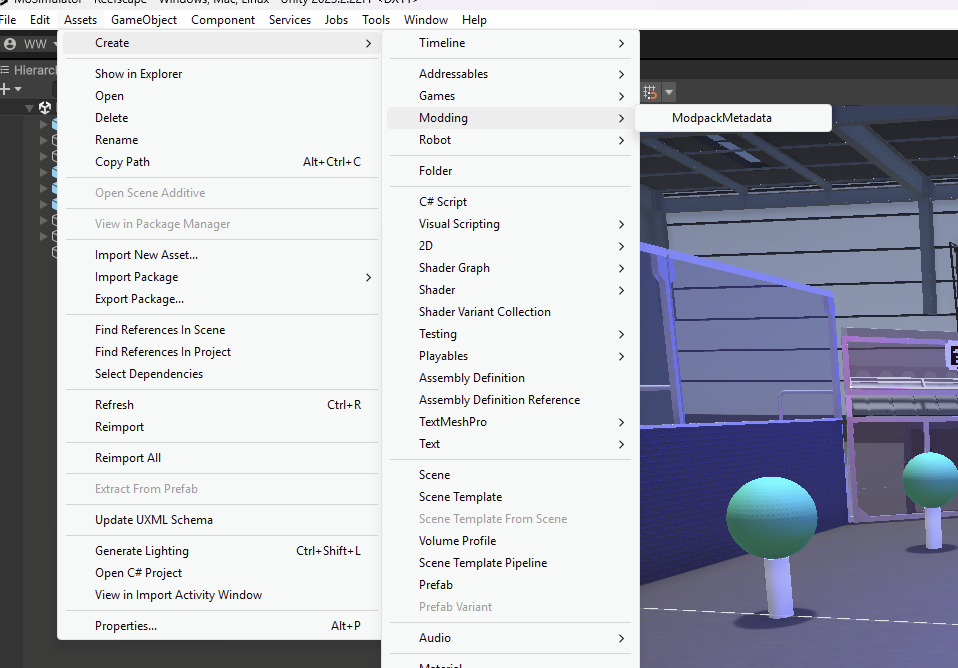
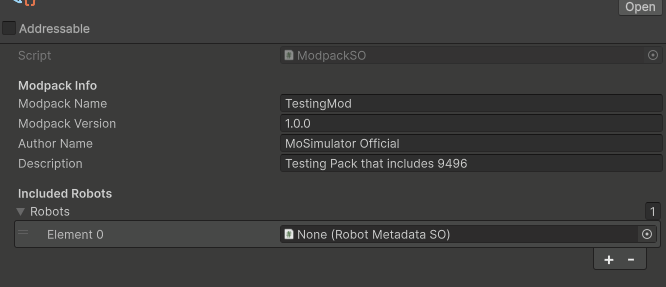
Copy the existing 2910 folder under Prefabs/Reefscape/Robots to your new folder; we will use this as an example to follow along.
To make the next step not painful, I recommend clicking the lock in the top right of the inspector menu.

This locks the inspector object allowing you to click freely
Now open the 2910 folder you copied and drag the JackInTheBot Scriptable object into the robots list
Disable the lock.
Then rename the 2910 things to 9496 and Lynk, after doing so, re-fill out the 9496 SO (scriptable Object) as the fields are outdated.
Now go to the Imports/Reefscape/Models/Robots folder add a 9496 folder and import 9496(2025).fbx
With that done we can go to the 9496 prefab we made in our folder, and delete everything but the drivetrain.
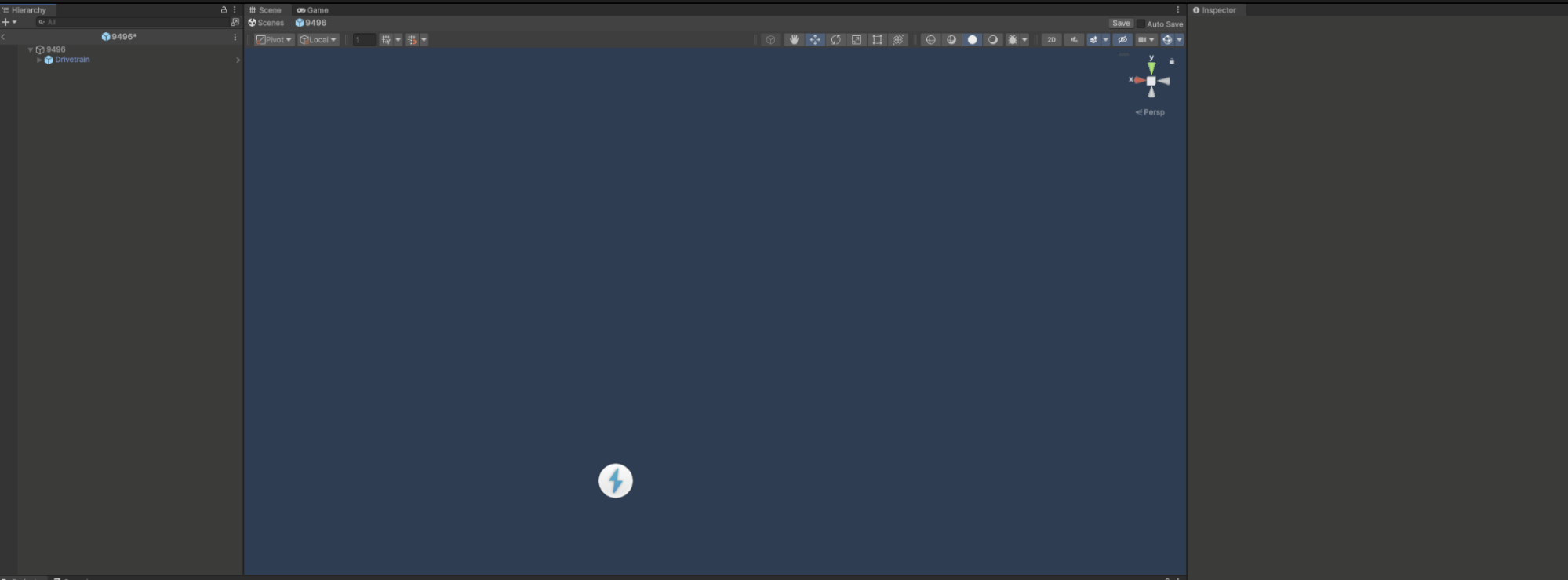
Now drag the 9496 model from the import into the hierarchy and we are ready to start
Hierarchy Setup
Our scene now looks like this.
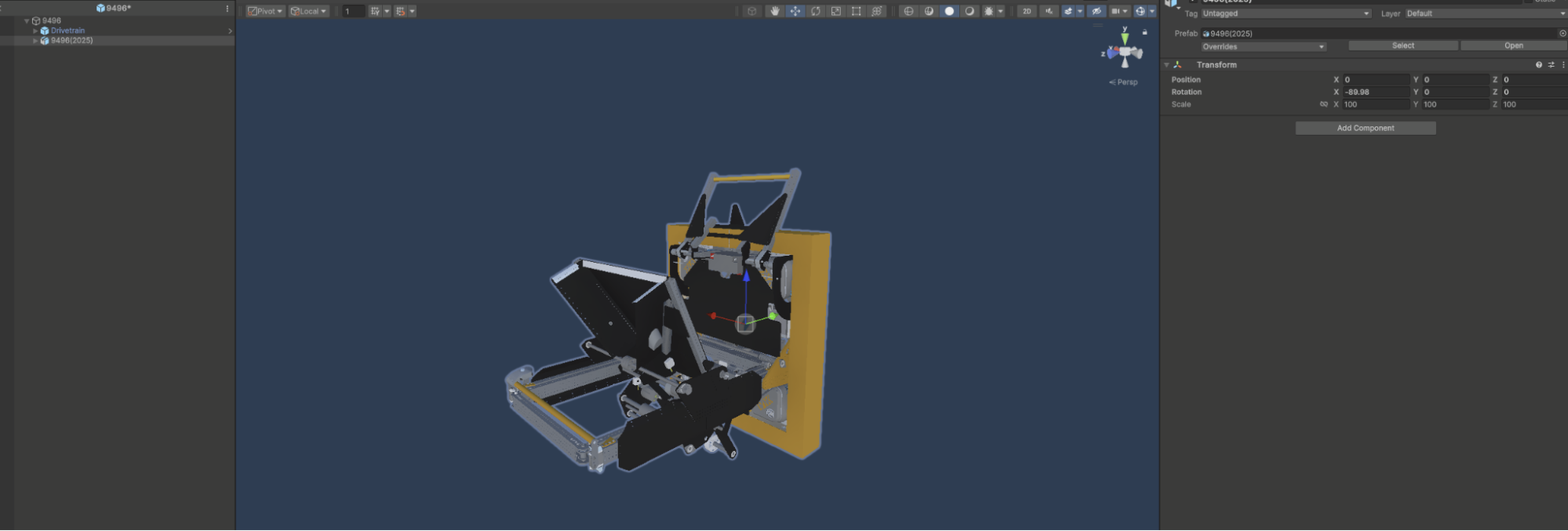
Lets use the rotate tool while holding control to rotate the robot 90 degrees such that Y is up, Z is forward, and X is sideways.
From there we check the model height vs the wheel height and see if the model is low.
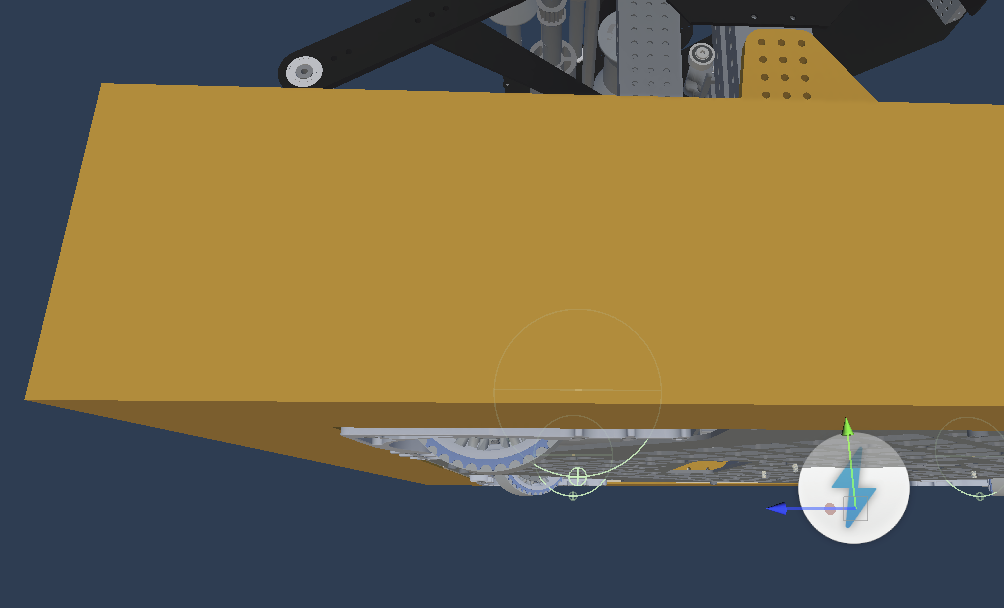
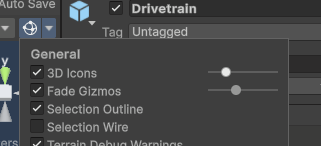
Moving the 3d Icons slider to the left will shrink the icon in the middle
After moving the model until the heights match we can start the next step.
Right click the model in the hierarchy, search unpack, and click it.
Right click the top (9496) object and create an empty. Name it Stationary.
Move the following from the model to this new object.
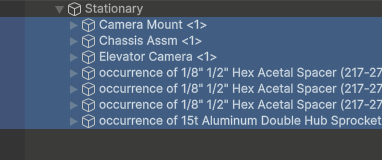
Now go to Stationary and click the little eye to hide things. This will help speed the process along.
Unfortunately you may notice their climber is a part of the chassis model. We will come back to that later.
Hide the funnel, then create a new empty child of 9496. Name it Elevator, and reposition it to be directly under the elevator.
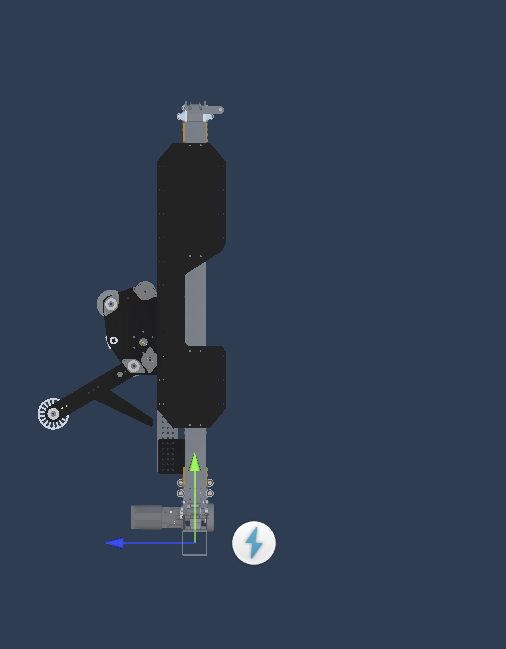
It is very important you don't change the Y height of anything in the next steps.
Lynk is a 2 stage elevator, so we want to make 3 children of Elevator: Stationary, Stage1, and Stage2. Again, do NOT move these.
Move the end effector model into Stage2 and hide it. Now we want to select the carriage model using ctrl and left click.
Every time you move a set of models into Stage2, un-hide and hide it again to see what's left. This is also a great time to optimize by removing hardware.
Another trick to help is that if you ctrl select Stage2 then drag it on itself, it will auto child all selected objects to it without the annoying scroll speed of direct dragging.
Unless unity is consistently crashing I also recommend disabling auto save as it saves a significant amount of time.
Once that is done you should have something like this:
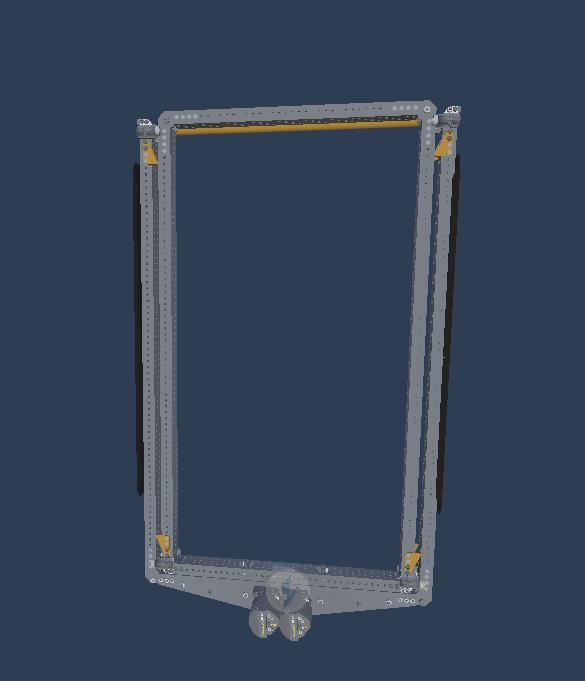
Shift select all children of Stage2 and right click to create an empty parent. Name it Model.

Repeat the same for Stage1.
Fortunately for our sanity's sake, the final part will be easy. Since only the stationary parts are left, we can simply drag select the whole model in the scene view and then adjust it in the inspector.
You may run into issues selecting Drivetrain and the base prefab. Simply unselect those, this model is quite large so selecting those isn't uncommon.
The elevator hierarchy now looks like this.
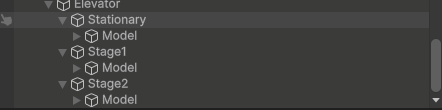
And after hiding Stationary we should see nothing.
You can also delete the Thin 2 Stage Example as the children are holding nothing useful anymore.
Unhide the funnel, add a new game object named Funnel, and under it do the following
Create an empty named FunnelPivot, and align it with the drop pivot.
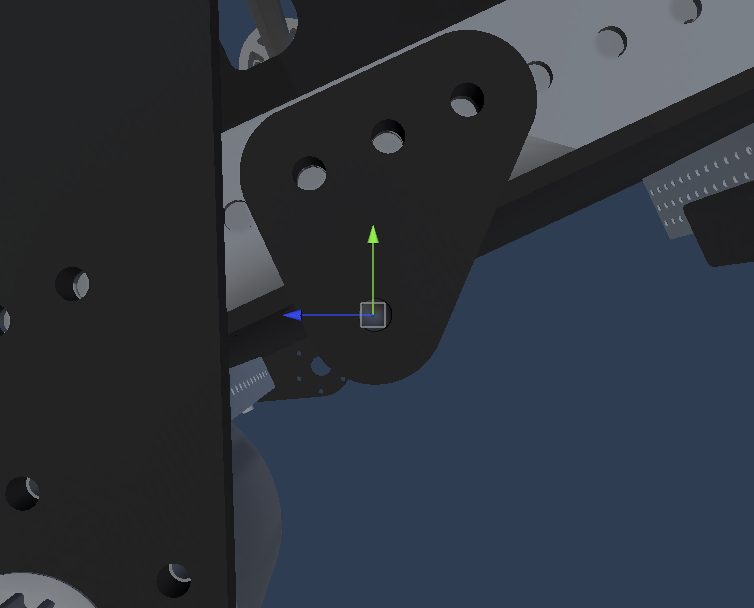
Add another for the roller named RollerPivot.
Move the hex and wheels into RollerPivot.
Do the same for the moving parts of the funnel into FunnelPivot.
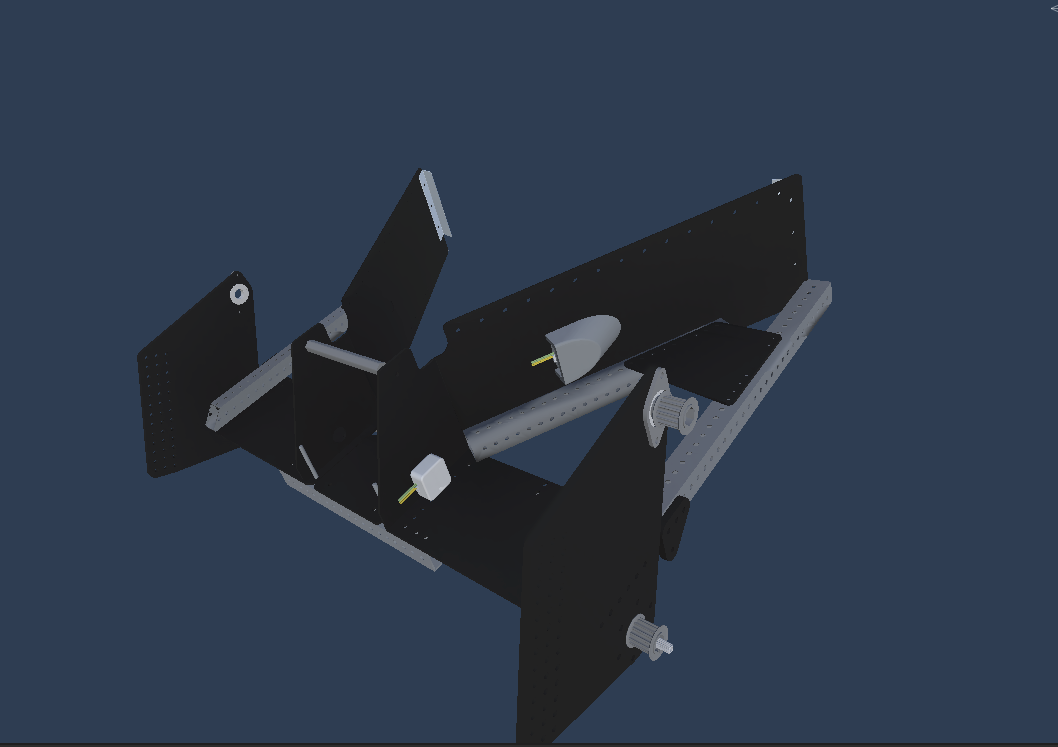
Create a Stationary object in Funnel and move the remaining objects there.
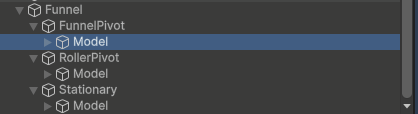
With the funnel done we can delete the 9496(2025) object as it no longer has any models on it.
Re-child the algae arm models to AlgaeArm.
Returning to the elevator, unhide Stage2, then add a new object child of Stage2 named AlgaeArm and reposition it for the algae arm
Next up, re-enable the drivetrain and add a climber object. Align it as the pivot to make the next steps easier.
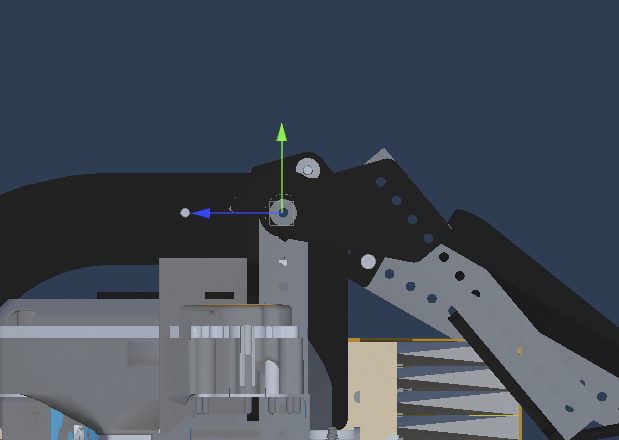
Create an empty child named ClimbBar, and ClimbWedge.
Congratulations, you have finished the first tedious part…. Now to paint the whole thing. Inside the Materials folder you will find the available colors.