Mod Building
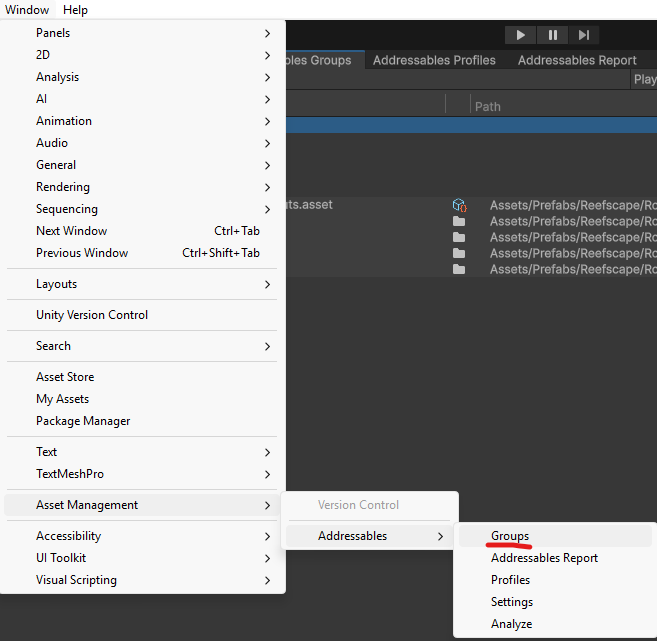
- Go to
Window/Asset Management/Addressables/Groups
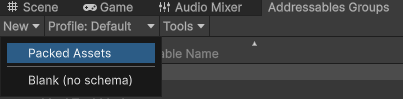
- Create a
New/Packaged Assets. This is an addressable group and will be used to bundle your mod
-
Drag in your mod folder under this new asset
-
Expand the dropdown and make sure that all of your folders and files are in there
-
Add the
modpack_metadatalabel to your modpack folder

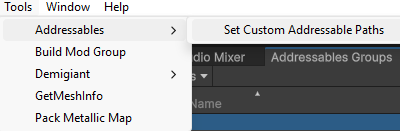
- Now click on your modpack asset and go to
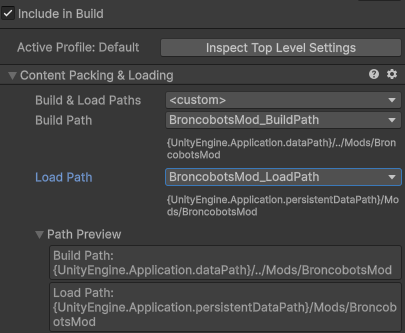
Tools/Addressables/Set Custom Addressables Path. This should add custom Build and Load Paths for your mod
- Select those new paths and then make sure that Include in Build is checked.
-
Deselect
Include in Buildfor every other asset -
Now go to
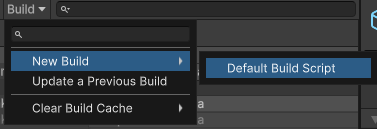
Build/New Build/Default Build Script. This should build your mod to the Build Path shown in the inspector.
-
Navigate to your base Unity MoSim install.
-
Under that folder you should see a
Modsfolder and then your custom mod folder. Inside there should be a.bundlefile. This is your mod’s assets. -
Under your Unity MoSim folder you should see a Library/com.unity.addressables/aa/Windows. There should be these files: catalog.hash, catalog.json, settings.json.
-
You should also find a dll file for your mod under Library/ScriptAssemblies/YOURMOD.dll
-
Copy all of these files to a folder specifically labelled your addressable group name.
-
Finally, add this folder to your mods folder (insert mods folder locations for reference) and then test by running MoSim.
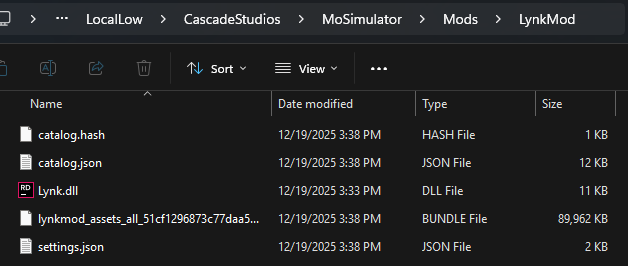
- If this works, you are good to go! Zip the folder and have fun!